
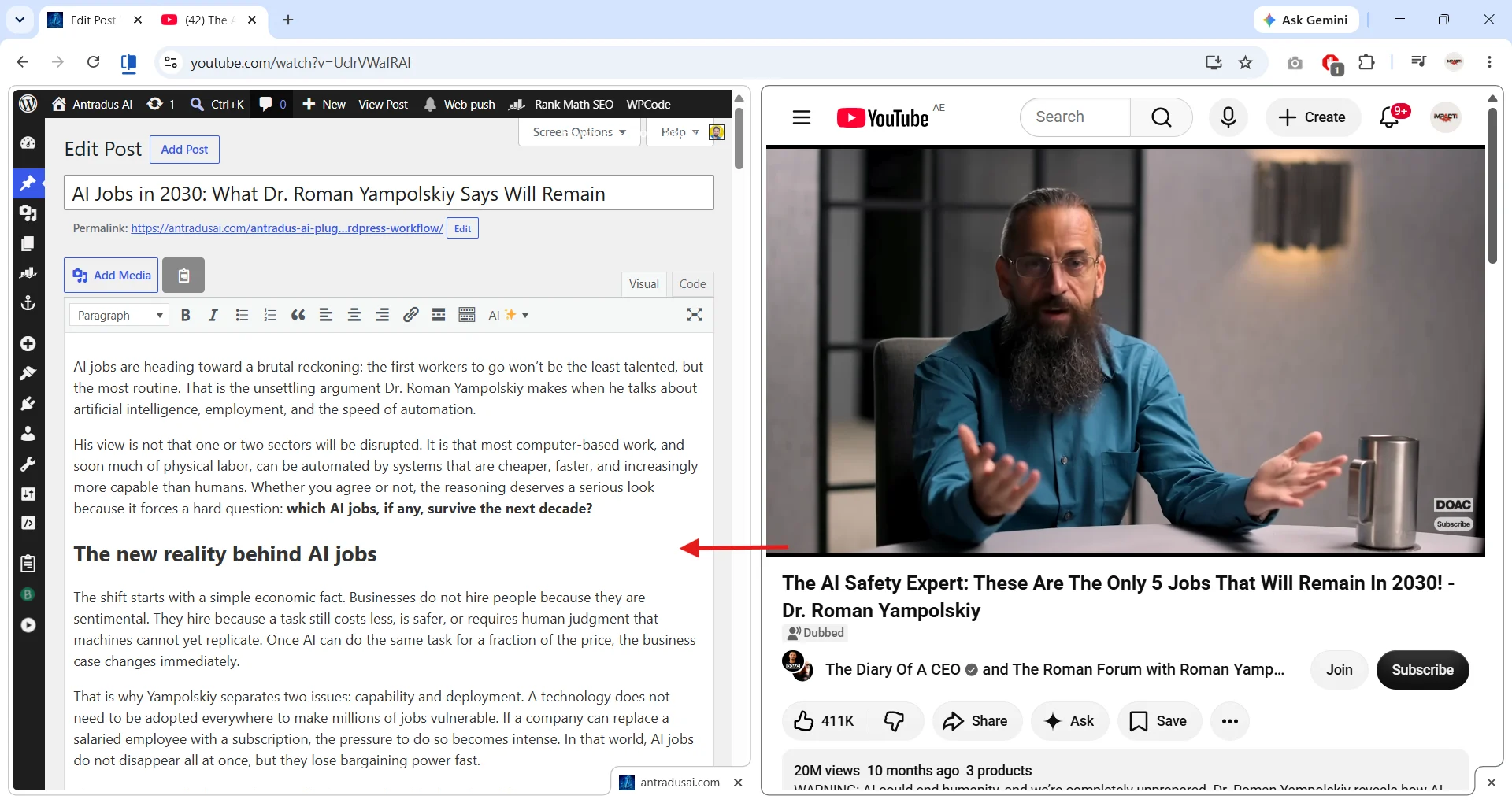
YouTube to WordPress: How to Convert Videos with Antradus AI
Turn a YouTube video into an article directly inside WordPress with Antradus AI Pro. Paste a video URL, fetch the transcript through the companion browser extension, and let the plugin write an original article about the topic.
This workflow is designed for creators, publishers, and site owners who want to turn spoken content into something easier to search, skim, quote, and update. Instead of copying a transcript manually, you use the video as source material and generate a polished draft inside the editor.
Why the browser extension is required
YouTube blocks many transcript requests that come from web servers. Common reasons include IP restrictions, missing sign-in status, and consent or age-related walls. That means a server-side request often fails even when the same video opens normally in your browser.
The Antradus Auto Pilot YT extension solves this by reading captions from your own browser, where you are already signed in and trusted by YouTube. When Antradus AI requests a transcript, the extension quietly reads it and returns the text to the plugin.
In practice, this is the most reliable way to turn a YouTube video into an article.
One-time setup
- Open Antradus AI → ▶️ YouTube to Article.
- Click Download the YouTube extension, or install it from the Chrome Web Store.
- After installation, click the extension’s ▶ icon in your browser toolbar.
- Choose Enable on this site for your WordPress website.
You only need to do this once per site.
The extension asks for access to your WordPress site only, not all websites, and only when you click Enable on this site.
Step-by-step: turn a YouTube video into an article
- Open the Antradus AI panel on a new post.
- Paste the video link into the YouTube URL field, such as https://www.youtube.com/watch?v=….
- Click Get transcript.
- If the video is already open in another browser tab, the extension reads it immediately without opening anything new. If not, a YouTube tab may open briefly while the captions are read, then close automatically.
- Review the transcript text the extension found. You can edit or trim it before generation.
- Choose the Style, Tone, and Language.
- Click Start Writing.
Antradus AI then writes an original article based on the transcript, along with SEO meta as usual.
What the AI does with the transcript
Inside Antradus AI → ▶️ YouTube to Article, you will see a box labeled What the AI does with the transcript.
By default, it tells the AI to write an original article about the subject of the transcript, not a review of the video itself. This default is usually the right choice if you want a normal blog post rather than commentary about the YouTube content.
You can edit that instruction to change the outcome. For example, you can ask the AI to:
- summarize the video
- extract a how-to guide
- rewrite the ideas in a list format
- create a beginner-friendly explainer
- write in a specific tone or structure
If you want to go back to the original behavior, click Restore default.
What produces good results
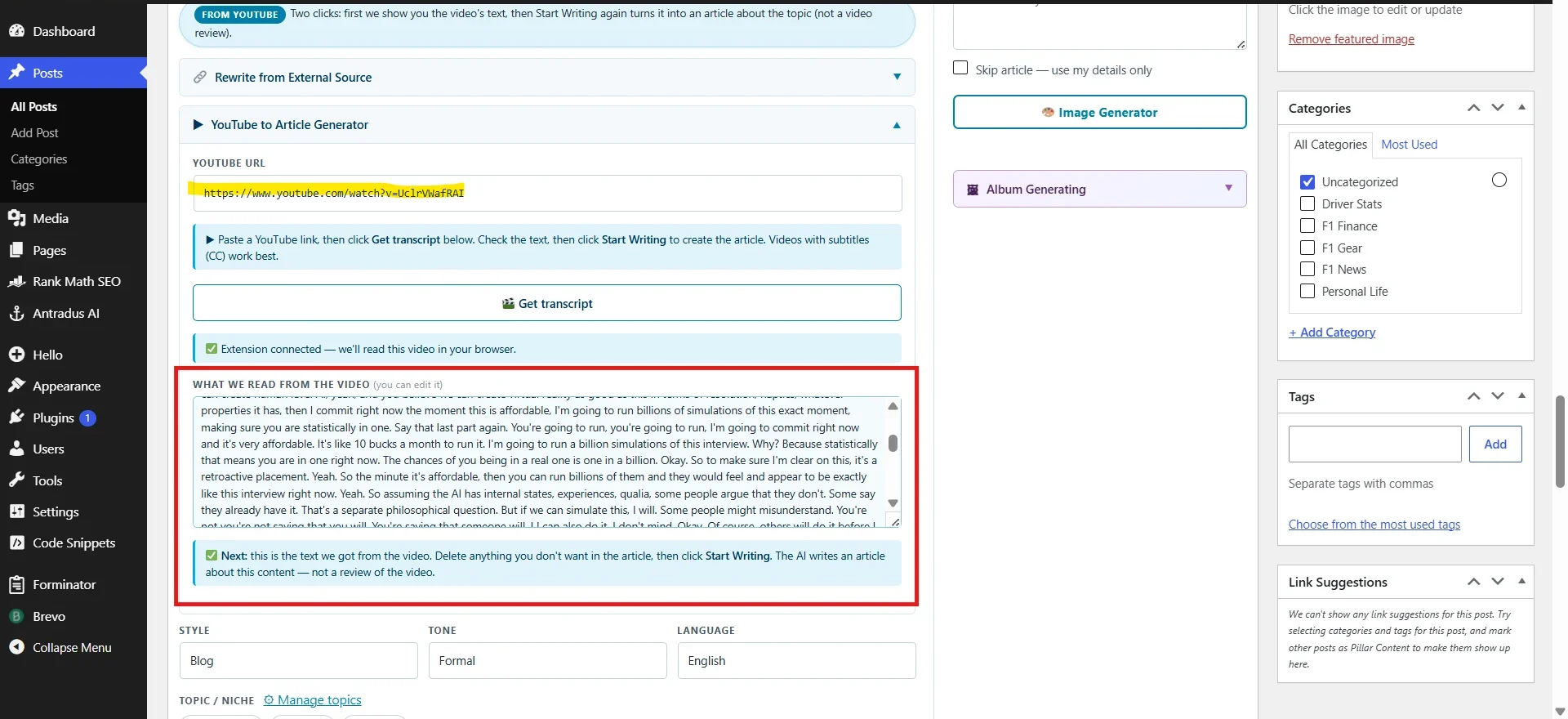
The quality of the final article depends heavily on whether the video can be read correctly and how complete the captions are.
- Has subtitles or closed captions: best-case result. Auto-generated captions are fine and usually give the AI enough coverage to work well.
- No subtitles at all: the video cannot be read, because the extension needs a caption track.
- Private or age-restricted video: cannot be read in this workflow.
When captions are available, the plugin strips timing and timestamps before the AI sees the text. That helps produce a cleaner article rather than a transcript dump.
Server fallback if you cannot install the extension
If installing the extension is not possible, the install box also offers read it on the server instead (less reliable).
This sends the transcript request from your website’s server rather than your browser. It can work, but it often fails because YouTube blocks or limits caption access from server environments.
Use this as a backup option, not the main workflow.
Tips and gotchas
- Already watching the video in another tab? Leave it open. The extension can read that tab directly, which is faster and avoids opening a temporary YouTube page.
- The output is an article, not a raw transcript. Antradus AI writes original content about the topic instead of pasting captions into the post.
- Long videos are supported. The AI focuses on the substance and usually filters out filler better than a manual transcript copy-paste workflow.
- Installed the extension but the interface still says “install”? Click ↻ re-check, or focus the YouTube link field to refresh detection.
- Working through many videos from one creator? Use the YouTube Channel → Blog recipe instead of processing each video one by one.
Before you start
To use this feature, you need Antradus AI Pro. The YouTube-to-article workflow is not part of Lite.
You also need:
- a working WordPress site
- Antradus AI Pro installed and activated
- a valid license or active trial
- an AI provider API key connected in the plugin
- the browser extension enabled on your WordPress site
How to get better articles after generation
Even with a strong transcript, the best results come from a quick editorial pass after the first draft is created.
Start by checking whether the structure fits readers better than the original video flow. A spoken explanation may wander, repeat points, or include references that only make sense on screen. Tightening those sections usually improves the article immediately.
Then review headings, examples, and transitions. In most cases, the strongest blog version of a video groups ideas by topic rather than by the exact order they were spoken.
It is also worth verifying names, dates, product details, and claims before publishing. The AI can write smoothly, but final accuracy still depends on human review.
When this workflow works best
This feature is especially useful when you want to repurpose:
- tutorials
- product explainers
- interviews
- commentary videos
- educational channel content
It works best when the video has usable captions and a clear topic. The cleaner the spoken structure, the easier it is for the AI to produce a strong article on the first pass.
Best practice: use the browser extension for transcript access, then use Antradus AI to turn that transcript into an original article about the topic.